# 4.4. Use the TTL port to connect and control

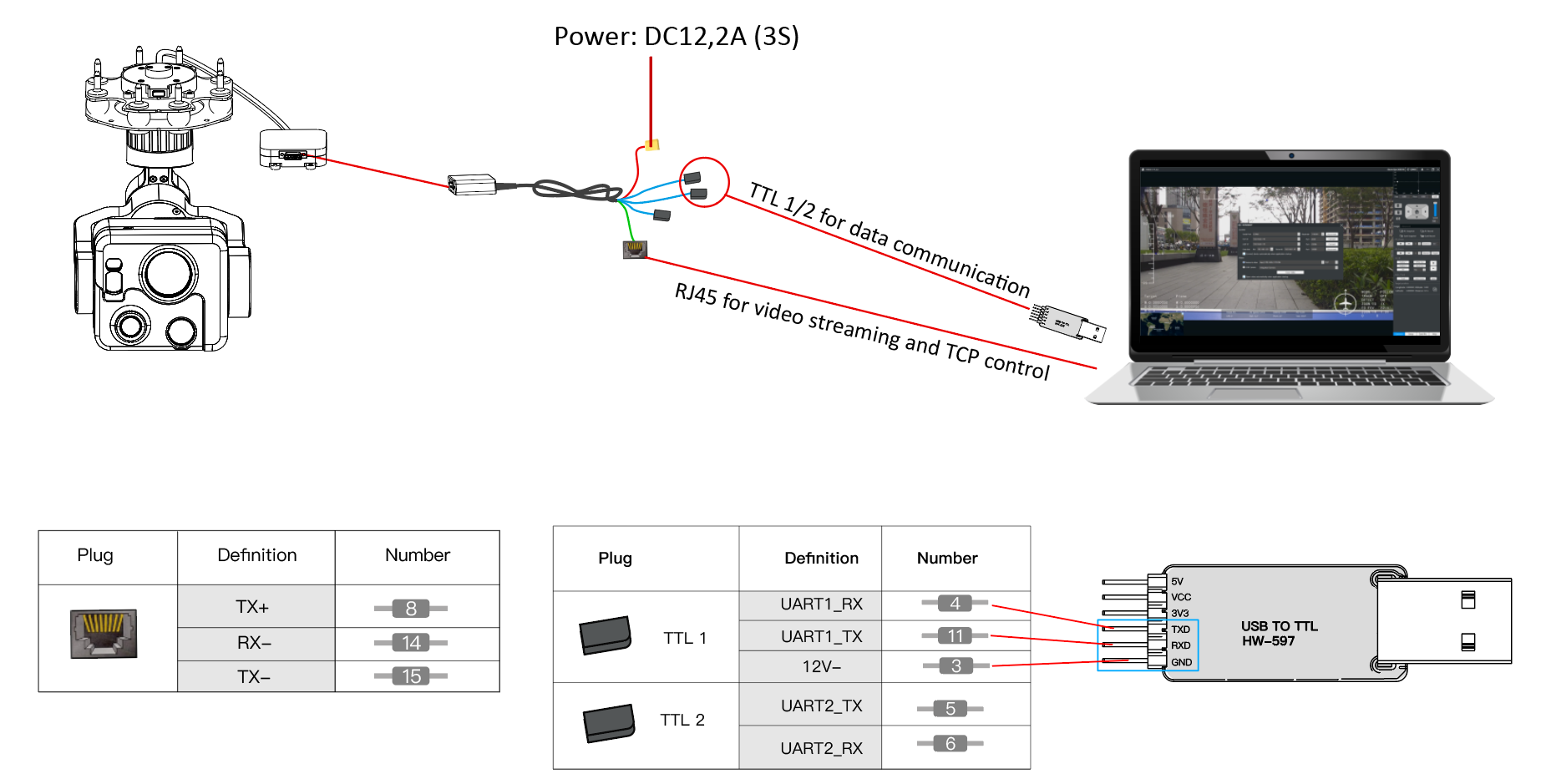
#### Scenario 1: Connect directly without using video & data Link equipment.

<figure><img src="https://1851866520-files.gitbook.io/~/files/v0/b/gitbook-x-prod.appspot.com/o/spaces%2FIWx9bMxy88NRLPUcOemU%2Fuploads%2FWYkI9UbEOTaZv1TXIbbm%2Fimage.png?alt=media&#x26;token=1e2733b7-b10d-4d3e-bc4c-ef83e479a21b" alt=""><figcaption></figcaption></figure>

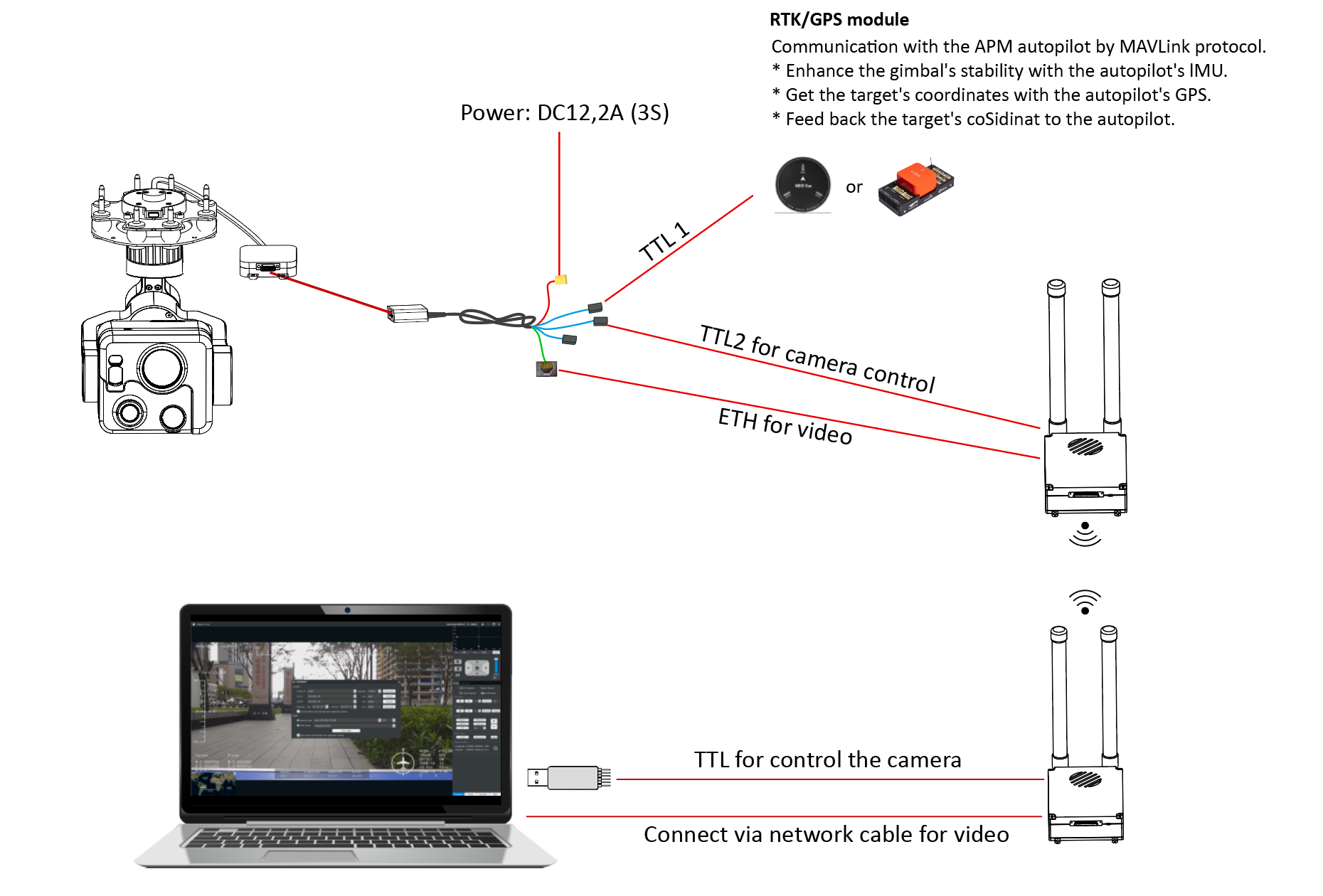
#### Scenario 2: Connect via devices such as video & data Link, and use the TTL connection method for control.

<figure><img src="https://1851866520-files.gitbook.io/~/files/v0/b/gitbook-x-prod.appspot.com/o/spaces%2FIWx9bMxy88NRLPUcOemU%2Fuploads%2F8uWpWENd3BWl4EWn7eSy%2Fimage.png?alt=media&#x26;token=76abadd6-5ab1-491a-91c0-41061d1a0bed" alt=""><figcaption></figcaption></figure>

#### After the connection is completed, perform image connection and control on YDlink.&#xD; Step 1. Chose the COM port and Baudrate 115200.&#xD; Step 2. Click the “Connect” botton to enable gimbal control.
<figure><img src="https://1851866520-files.gitbook.io/~/files/v0/b/gitbook-x-prod.appspot.com/o/spaces%2FIWx9bMxy88NRLPUcOemU%2Fuploads%2Frsk7PiOIeDkvXYYG8Ntm%2Fimage.png?alt=media&#x26;token=f4207a04-9738-47d8-a1fa-ec9fcfa1190c" alt=""><figcaption></figcaption></figure>